

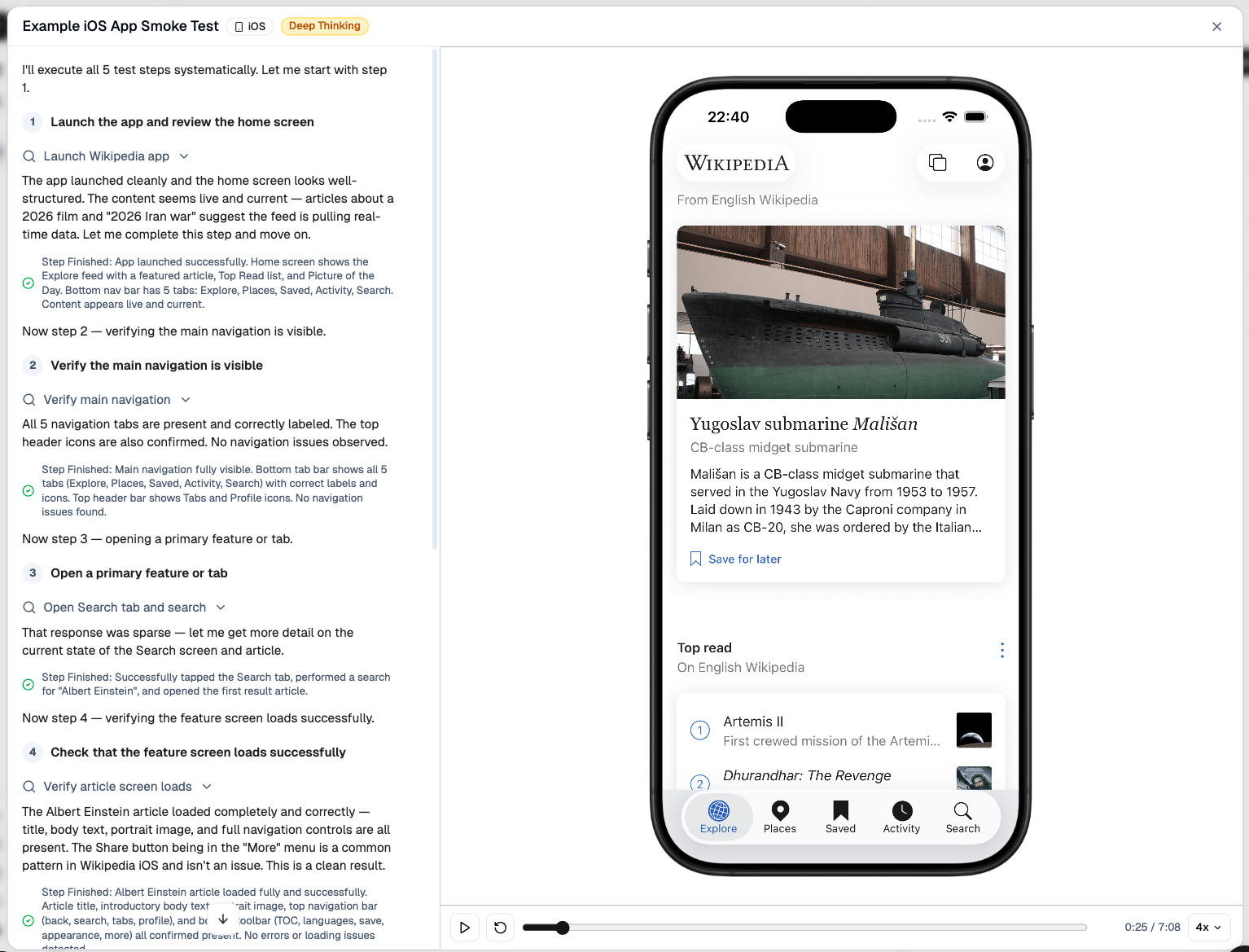
Recommended setup
- Build an iOS Simulator version of your app and zip the
.appbundle, or build an Android.apk/.apks. - Upload that build to TesterArmy and create your first mobile test.
- Run the test manually to confirm everything works.
- Add Expo EAS or GitHub Actions so the same tests run automatically on every change.
Supported platforms
Device selection
iOS tests run on iPhone by default. To run on iPad, pick iPad in the dashboard run menu, or passdeviceModel: "ipad" when triggering runs via the
API or the CLI (--device-model ipad).
The dashboard run menu defaults to the platform that has an uploaded app, so a
project with only an Android build opens on Android. iPhone is the fallback when
no app is uploaded.
iPad runs execute in landscape, the orientation iPad layouts are designed
around: the device stays landscape for the whole run, and replays and live
previews are shown in a landscape iPad. Apps that only support portrait keep
their own portrait layout and are tested that way. iPhone runs are always
portrait.
Device location and region
Every mobile run starts with the device GPS set to San Francisco, so location-aware apps see the same position on every run. Ask for a different location in a test step and the agent moves the device there. To choose where the simulator or emulator itself runs, set Simulator Region (Europe (North) or United States (West)) in the test settings. This sets where the device is hosted, not its GPS position.Photos and videos in the device library
Flows like avatar upload, receipt scanning, or video attachments need media to pick. Upload photos (.png, .jpg, .jpeg) or videos (.mp4, .mov) to the project’s Files tab and attach them to a files step: before the run starts, TesterArmy preloads them into the device photo library (iOS Simulator Photos, Android gallery), and the agent selects them through your app’s own media picker. Mobile projects accept photo and video uploads only - other file types cannot reach the app under test.
Offline and reconnect testing (Android)
Write a step like “turn off the network, check the offline banner, then go back online” and the agent switches the emulator’s connectivity through Android itself, so your app receives realConnectivityManager callbacks (offline banners, retries, cache fallbacks) instead of silently timing out. The agent waits until Android reports the new state before continuing, and restores connectivity once the offline assertion is done.
This is Android-only: iOS Simulators expose no equivalent switch that the app under test can observe.
Requirements
TesterArmy currently supports simulator/emulator builds only. For iOS, that means you need a.app bundle built for iOS Simulator, not an .ipa built for physical devices. For Android, upload a single .apk or a split APK archive (.apks). .aab and .xapk are not supported.
For manual iOS uploads, archive the simulator build as .app.zip. If you use our GitHub Action, you can pass the .app directory directly and the action handles the upload for you.
See App Uploads for the build and zip steps.
Limitations
Currently we support running tests on simulators only, so features like camera access and biometric access (Face ID, Touch ID) are not supported. If you need to run tests on real devices please contact us.Next steps
Build and upload your app
Build an iOS Simulator .app or Android APK, upload it, and create your first mobile test.
Set up GitHub Actions
Run your existing mobile tests automatically in CI with our GitHub Action.
Set up Expo EAS
Run TesterArmy mobile tests from Expo EAS workflows.
Test Apple Pay
Exercise Apple Pay checkout flows in your iOS app, from payment sheet to success screen.