

Build and upload a mobile app with TesterArmy CLI
What you need to upload
- iOS
- Android
Upload an iOS Simulator build as The simulator app bundle usually ends up here:If you are using Expo / React Native, the mobile example app is a good reference. Its build flow looks like this:Zip the
For dashboard uploads and the presigned API upload flow, archive the You should end up with a file like
.app.zip or .zip (archive a .app bundle at the zip root). The CLI can also accept a raw .app directory and zip it for you.Build for iOS Simulator
If you already have an Xcode project, build a simulator app withxcodebuild:Zip the .app bundle
For dashboard uploads and the presigned API upload flow, archive the .app bundle after the build completes:MyApp.app.zip whose top-level entry is MyApp.app/, not Payload/MyApp.app/.Upload via the dashboard
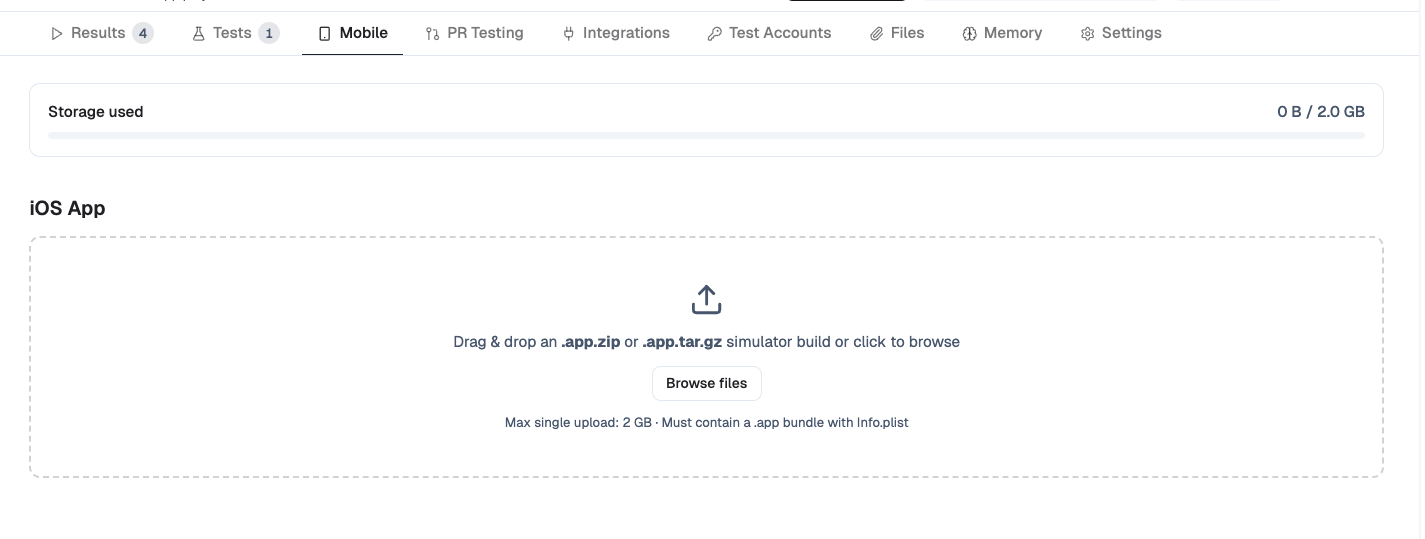
Go to your project and click the Mobile tab. Then click Browse files and select your.app.zip, .apk, or .apks.
TesterArmy uploads the artifact to temporary storage first, validates the bundle metadata, and then promotes the validated artifact into your project. If validation fails, the temporary upload is removed and no project app is created.
Upload via the API
For large artifacts, use the three-step presigned flow that streams the bytes straight to storage:POST /api/v1/projects/{projectId}/mobile/uploadwith{ filename, fileSize }. The response includes anuploadUrlandstorageKey.PUTthe archive bytes touploadUrl.POST /api/v1/projects/{projectId}/mobile/upload/confirmwith the samestorageKey,filename, andfileSize, plus optionalremoveAfter.
POST /api/v1/projects/{projectId}/mobile) remains supported for existing integrations.
Create your first mobile test
Before adding CI, upload your build, create at least one mobile test, and run it to make sure it passes. Runs target your most recent uploaded app for the platform automatically; pass an explicit app ID via the API or CLI only when you need to pin a specific build. When writing prompts, guide the agent like you would guide a human user. Weak prompt example: “Open settings” Strong prompt example: “Tap the profile icon in the top right, open Settings, and verify the notifications toggle is visible” Specific prompts produce more reliable tests and make CI failures easier to understand.Upload with the CLI
The TesterArmy CLI can upload a raw.app directory, an .app.zip, an .apk, or an .apks. Raw .app directories are packed for you with the app bundle at the archive root:
--app-path and --project are required.
For temporary CI uploads, you can set removeAfter in seconds:
--output ./result.json to write the JSON payload to a specific file, or
--output ./artifacts/ to write ta-app-upload-<date>.json inside a directory.
The command rejects .ipa archives.
It also rejects Android .aab and .xapk bundles.
If you use Expo EAS, see Expo EAS for the full workflow that
builds the mobile app artifact, downloads it, uploads it, and runs
TesterArmy tests.
Notes
- Use
removeAfterto auto-delete temporary uploads created during CI. - Each project has a 2 GB storage limit.
- Auto-delete Oldest App is enabled by default: when a new upload would exceed the storage limit, TesterArmy automatically deletes the oldest uploaded app to make room. Apps used by queued or running tests are never auto-deleted. Disable the toggle in the project’s Mobile tab to have over-limit uploads rejected instead.
- Our GitHub Action can upload the
.appdirectory directly, so you do not need to zip it when running through GitHub Actions. - Android uploads require workspace-level Android support to be enabled.